


Equipment & Returns
All equipment is provided on a rental basis, so it will need to be returned at the end of your time with Beanfield. This helps us make sure that our equipment is reused and recycled - cause we love being green. Plus, it helps us keep our prices low for future customers.
Your invoice will outline which hardware has been provided to you as “Rental.”
To return your equipment, you will have two options:
If you refer the new tenant moving into your unit to Beanfield and they sign up, you can leave your equipment in the unit. Plus you’ll get a $100 gift card. See "How do I refer the next tenant and get a $100 gift card?" to learn more.
If you do not refer the tenant moving into your unit, your hardware must be returned within 15 days of your cancellation date. Otherwise, you will be charged to cover the cost. Equipment is considered fully returned once it arrives back at our office. Beanfield is not responsible for lost or misplaced equipment while it’s with your concierge or the courier company. Go to "What is the process for returning my equipment?" to learn more.
Below are the one-time charge fees we may charge you if equipment is not returned, or if it is returned in a condition beyond reasonable wear and tear requiring replacement.
These fees change over time, so check back just to ensure you’re looking at the most current list.
Equipment Item | Amount |
|---|---|
Airties WiFi AP | $100 |
GPON Zhone Router | $70 |
Nokia WiFi Beacon | $150 |
Nokia ONT | $70 |
XGS Zhone Router | $110 |
Router Rental (Other) | $50 |
TV Box | $90 |
Discountinued Models | $20 |
Once you're ready to send back your hardware, we will issue a link to create a Canada Post Waybill (please note we can only accept addresses within Canada). Simply print out your waybill and pack up your equipment in a box or envelope. When you're ready, drop the package off at any Canada Post mailbox or post office location.
Please note that your hardware needs to be returned within 15 days of your cancellation date. If we don’t get it back in time, a charge will be applied to your account to cover the cost of your unreturned equipment. You can find the cost of unreturned or damaged equipment by going to "What are the one-time charge fees if I don't return my hardware?".
We do encourage customers to use the rental hardware provided by Beanfield, so we can provide the best service and support for optimal performance.
If you would like to use your own router that supports multi-Gbps speeds and has a 10 Gbps port, you can. type: entry-hyperlink id: OKw3TOJTY40XGaKBwGjwv.
Ready to give your WiFi network a makeover?
This can all be done in the Beanfield WiFi app only if you have a Nokia WiFi Beacon.
Log into the Beanfield WiFi app
Go to Settings and click your existing WiFi network name
Click the pencil icon.
Fill in your new network name and save.
If you have an AirTies WiFi AP or Nokia WiFi Beacon, we’ve made it easy to manage your WiFi settings in our MyBeanfield customer portal:
Login to MyBeanfield and on the homepage, you will see the Home Internet & WiFi section
Click "Go to Settings" in the top right-hand corner of the Home Internet & WiFi section to open the Network Settings page
Manage your network:
- If you have an AirTies WiFi AP: go to the WiFi Settings section and click Edit WiFi Settings to open the WiFi settings dialog. There you can enter your new WiFi Network Name and Password. Click save.
- If you have a Nokia WiFi Beacon: you can access your WiFi settings by typing in 192.168.18.1 in your browser or by logging into the MyBeanfield Portal, scrolling down to WiFi Settings and clicking Go to Router Settings or Log in to manage.
Login to MyBeanfield and on the homepage, you will see the Home Internet & WiFi section
Click "Go to Settings" in the top right-hand corner of the Home Internet & WiFi section to open the Network Settings page
Then go to the WiFi Settings section and click "Edit WiFi Settings" to open the WiFI settings dialog. There you can enter your new WiFi Network Name and Password
Don't forget to click the "Save" button to save your new settings
Internet
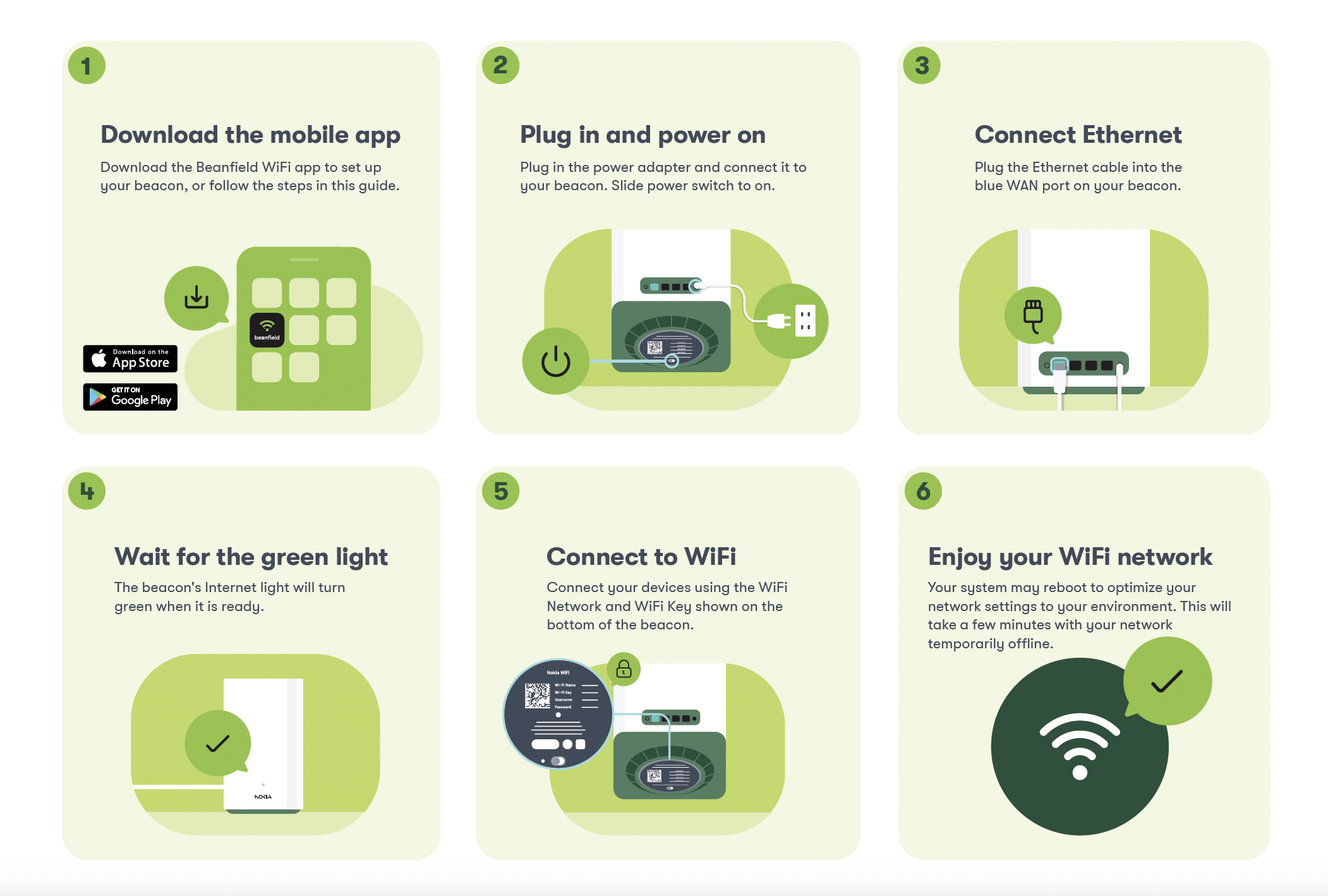
We encourage you to use the Beanfield WiFi app to set up your Nokia WiFi Beacon. Upon login, you’ll be instructed on how to get set up.
If you aren’t able to download the app, please follow the instructions below:
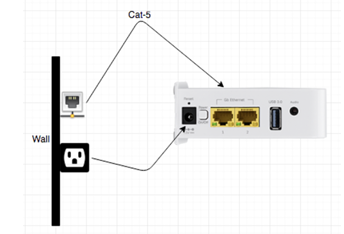
If you've just received a new AirTies WiFi Access Point and you're looking to set it up or want to move your current device to a new location, you can do so by following these steps:
Start by unboxing and removing any plastic wrappings from your device and connect the Cat-5 ethernet cable to both the AirTies and the wall port, as shown in the picture below. Then, plug in the power adaptor.
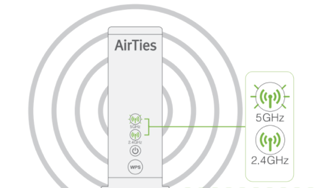
Wait patiently for both the 5GHz and 2.4 GHz lights to turn solid green (this should take between 3 to 5 minutes).
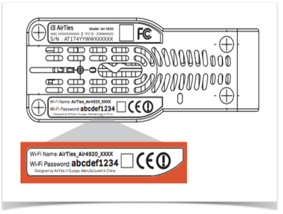
Once the lights are green, you're ready to connect to your WiFi network using the default credentials found at the bottom of the device. It's that easy!
We do encourage customers to use the rental hardware provided by Beanfield, so we can provide the best service and support for optimal performance.
If you would like to use your own router that supports multi-Gbps speeds and has a 10 Gbps port, you can. type: entry-hyperlink id: OKw3TOJTY40XGaKBwGjwv.
The short answer is, to give you the best WiFi experience possible, the Zhone ONT does not have WiFi built in and two pieces of hardware are required.
Hear us out.
When it comes to WiFi, it’s all about finding the best spot for your WiFi device. In most condos, the telecom infrastructure is often tucked away in the front hall closet, which isn’t exactly the ideal location for your WiFi signal. So, to get the best possible coverage, we install a Zhone ONT in your closet and a WiFi device wherever you need it most – like your living room or bedroom. That way, you and all your devices can enjoy an optimized WiFi experience. Happy streaming.
Ready to give your WiFi network a makeover?
This can all be done in the Beanfield WiFi app only if you have a Nokia WiFi Beacon.
Log into the Beanfield WiFi app
Go to Settings and click your existing WiFi network name
Click the pencil icon.
Fill in your new network name and save.
If you have an AirTies WiFi AP or Nokia WiFi Beacon, we’ve made it easy to manage your WiFi settings in our MyBeanfield customer portal:
Login to MyBeanfield and on the homepage, you will see the Home Internet & WiFi section
Click "Go to Settings" in the top right-hand corner of the Home Internet & WiFi section to open the Network Settings page
Manage your network:
- If you have an AirTies WiFi AP: go to the WiFi Settings section and click Edit WiFi Settings to open the WiFi settings dialog. There you can enter your new WiFi Network Name and Password. Click save.
- If you have a Nokia WiFi Beacon: you can access your WiFi settings by typing in 192.168.18.1 in your browser or by logging into the MyBeanfield Portal, scrolling down to WiFi Settings and clicking Go to Router Settings or Log in to manage.
Login to MyBeanfield and on the homepage, you will see the Home Internet & WiFi section
Click "Go to Settings" in the top right-hand corner of the Home Internet & WiFi section to open the Network Settings page
Then go to the WiFi Settings section and click "Edit WiFi Settings" to open the WiFI settings dialog. There you can enter your new WiFi Network Name and Password
Don't forget to click the "Save" button to save your new settings
Looking to set up a separate WiFi network for when friends and family are visiting you? Look no further!
If you have a Nokia WiFi Beacon:
Use the Beanfield WiFi App.
Log into the app and go to Settings.
Click Guest WiFi and turn the Enable Network on. This will cause your network to go down for up to two minutes.
Follow instructions to fill in username and password to create the network.
Use the web interface:
Type 192.168.18.1 in your browser and search.
Log in with your MyBeanfield credentials
Go to Settings > click WiFi > select Guest Network and follow instructions.
If you have a AirTies WiFi AP:
You can easily set this up in our customer portal by following these simple 3 steps:
Login to the Beanfield Portal and go to the Home Internet & WiFi section and select "Go to Settings"
Under the WiFi Settings, click "Edit WiFi Settings"
When the WiFi Network Settings dialog box appears, select the "Enable Guest Network" checkbox. You can then add a guest network name and password.
Hit "Save "to save your new settings and you're all good to go!
Login to the Beanfield Portal and go to the Home Internet & WiFi section and select "Go to Settings"
Under the WiFi Settings, click "Edit WiFi Settings"
When the WiFi Network Settings dialog box appears, select the "Enable Guest Network" checkbox. You can then add a guest network name and password.
Hit "Save "to save your new settings and you're all good to go!
Looking to split your bands to improve your network coverage? Here's a quick guide to help you:
Login and click the "Go To Settings" in the top right-hand corner of the Home Internet & WiFi Section
Then click "Edit WiFi settings" and select the checkbox below where you see the WiFi Network Name and Password fields
Don't forget to click "Save"! To disable, just de-select the checkbox
Need to open a port for a specific device or service? You can easily do this from the comfort of your home following these simple steps:
If you have a Nokia WiFi Beacon:
Port forwarding enables applications such as games to reserve ports to directly connect to other devices on the Internet. (Note: Port forwarding is disabled if the networking mode is configured as Bridge mode.)
To set up port-forward, first log into the Beanfield WiFi app.
To create a rule: Tap Settings > Advanced > Port Forwarding > Create a rule.
Select a device or add one manually, add the IP address, and save changes
In the Create a rule screen, External Port, Internal Port, and Protocol (TCP & UDP, TCP, or UDP)
To delete a rule:
Go to the Port Forwarding list, tap the > next to the rule, and tap Delete rule.
If you have a AirTies WiFi AP
Login and navigate to the Home Internet & WiFi section on the homepage and click on the "Go To Settings" button
Scroll down to the LAN Settings section and you'll see the Port Forwarding Rules card
Click on the Add Rule button to open the Add Port Forwarding Rule dialog
When you see the Add Port Forwarding Rule dialog, you can fill out the following fields to add your rule
When you're finished, don't forget to click Save to save the rule
You will see your new rule on the display on the Port Forwarding card
Setting up Family profiles for parental control lets you restrict Internet access for certain devices at specific times or block specific content.
Log into the Beanfield WiFi App.
To create: Tap Profiles > Create New (or Add Family Profile). Give the profile a name and select the devices to add.
Features:
Internet Access:
Manually pause/unpause Internet access at any time.Schedules:
Set up times for Internet access to be enabled or disabled.Bedtime:
Set a specific time to block Internet access.
TV
Here are a few steps to try to get your remote back in action:
Replace the Battery
Sometimes the remote will still work even when the batteries are low, but it may have issues with responsiveness. If the fresh batteries still don’t do the trick, try checking the pairing of the remote.
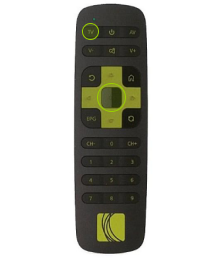
For a SmartLabs Remote:
Turn your TV on.
Point the remote control at your TV and press and hold the TV and OK buttons for three seconds. The LED on the remote control will flash twice and the remote control will switch to setup mode.
Release the TV and OK buttons.
Press and hold the CH- or CH+ button. The remote control will automatically send a power-off code to the TV every 1.5 seconds.
When the TV turns off, quickly release the CH- or CH+ button and press OK to save the code.
The LED will blink twice, and the remote control will exit the setup mode.
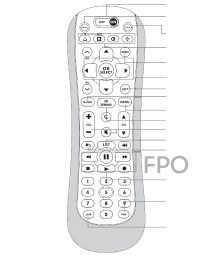
For a Keyboard Remote:
Press and hold the A & B button at the same time.
The On/Off button will begin to flash rapidly.
When the On/Off button stops flashing, the pairing is complete.
If you’ve tried these steps and your remote is still giving you trouble, please contact us. We’ll be happy to help you get back to enjoying your favourite shows and movies!
We have two different types of remotes depending on the TV Box you’re using. Please take a look at the User Guides to learn how to replace the batteries for each model.
We provide a Beanfield remote with our TV service, but if you have a Logitech Harmony Infrared (IR) remote, you’re in luck – it should work just fine. Our remote control is Radio Frequency (RF), which means you can hide your set-top box and it will still work. Unfortunately, this also means that it won’t work with all IR universal remotes.
Learn how to set up your Harmony remote with this User Guide.
Yes, every TV in your home will need its own set-top box. Our packages include one set-top box rental, but if you need to add more, you can rent additional set-top boxes as needed.
Home Phone
Yes, our Home Phone services are compatible with all standard home phone hardware.