

Accounts
The CRTC requires every TV subscriber to have a minimum set of channels, which for us is the Starter TV package for only $20/month. However, if you want to customize your channel lineup based on your viewing preferences, we offer a wide variety of channels that can be purchased A la Carte (individually). We also have Theme Packs available, which include popular channels within specific genres.
We are so sorry to break this news, but we offer our TV service (powered by Walnut TV Inc.) exclusively on our fibre network. In order to purchase our TV service, your building must have Beanfield Fibre.
If you’re interested in bringing Beanfield Fibre to your building, please contact us at getfibre@beanfield.com. We’d love to help make your TV dreams a reality!
You bet we do! Currently, we offer over 40 Go Service Channels. But we’re not stopping there – our provider is in the process of finalizing agreements with other content owners so we can bring even more Go Services to you.
Are you ready to watch your favourite shows on the go with your Beanfield TV subscription? Let’s go!
First, take a look through the list of our Go Service Channels. Just note that you must have the channel in your Beanfield TV channel lineup in order to take it on the go!
After checking that, all you have to do is:
Visit the channel’s website
Head over to their Go Service webpage
Select “Log in with my current subscriber” and use your Beanfield Portal credentials
You’re all set!
Just make sure you have your MyBeanfield Portal activated. If you’ve never accessed it before, don’t worry! Simply go here and click "Forgot your password?"
One more thing to keep in mind: Any changes to your TV subscription may take up to 24 hours to update your Go Service access. But hey, good things come to those who wait!
Of course we do! Both Beanfield TV packages include up to 25 hours of PVR storage. Stored for 365 days.
You bet you can! Our PVR lets you pause and rewind live TV, so you never miss a beat.
You know it! Our PVR is cloud-based, which means you can watch all the shows you record on any TV in your home automatically. No transferring or extra steps are needed. Just keep in mind that any recordings older than 365 days from when they were recorded will be automatically deleted from your saved PVR list.
To add or remove channels, please contact us. We’ll be happy to help you tailor your channel lineup to your viewing preferences.
You can view our full channel lineup here.
While our service is fully equipped to handle 4K content, our provider is currently facing some challenges with negotiating content rights for the 4K channels available in our market. As of now, we have Love Nature Channel in 4K. But don’t worry, we’re working hard to bring you the highest quality programming possible. Stay tuned!
Equipment
Here are a few steps to try to get your remote back in action:
Replace the Battery
Sometimes the remote will still work even when the batteries are low, but it may have issues with responsiveness. If the fresh batteries still don’t do the trick, try checking the pairing of the remote.
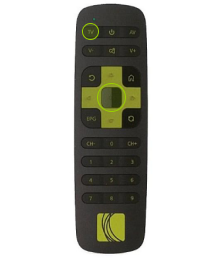
For a SmartLabs Remote:
Turn your TV on.
Point the remote control at your TV and press and hold the TV and OK buttons for three seconds. The LED on the remote control will flash twice and the remote control will switch to setup mode.
Release the TV and OK buttons.
Press and hold the CH- or CH+ button. The remote control will automatically send a power-off code to the TV every 1.5 seconds.
When the TV turns off, quickly release the CH- or CH+ button and press OK to save the code.
The LED will blink twice, and the remote control will exit the setup mode.
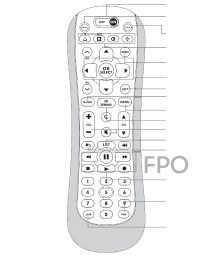
For a Keyboard Remote:
Press and hold the A & B button at the same time.
The On/Off button will begin to flash rapidly.
When the On/Off button stops flashing, the pairing is complete.
If you’ve tried these steps and your remote is still giving you trouble, please contact us. We’ll be happy to help you get back to enjoying your favourite shows and movies!
We have two different types of remotes depending on the TV Box you’re using. Please take a look at the User Guides to learn how to replace the batteries for each model.
We provide a Beanfield remote with our TV service, but if you have a Logitech Harmony Infrared (IR) remote, you’re in luck – it should work just fine. Our remote control is Radio Frequency (RF), which means you can hide your set-top box and it will still work. Unfortunately, this also means that it won’t work with all IR universal remotes.
Learn how to set up your Harmony remote with this User Guide.

Beanfield TV Remote Manual
Yes, every TV in your home will need its own set-top box. Our packages include one set-top box rental, but if you need to add more, you can rent additional set-top boxes as needed.